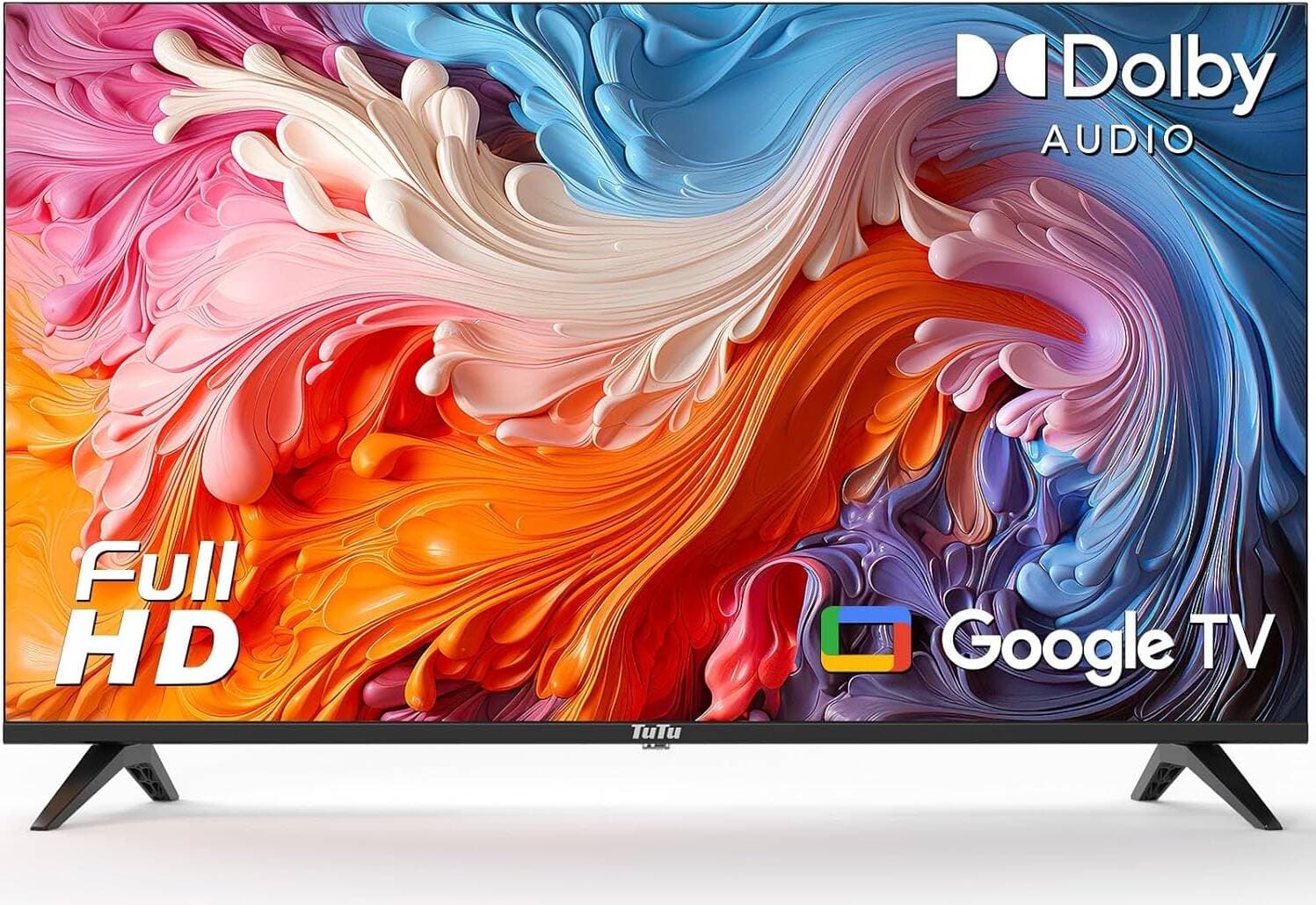
How to Connect Your Phone to a Smart TV
Connecting your phone to a smart TV allows you to enjoy videos, photos, games, and apps on a larger screen. Whether you are watching YouTube, Netflix, or showing photos to friends and family, screen mirroring or casting makes the experience more enjoyable. The good news is that modern smart TVs support multiple ways to connect a smartphone, including wireless mirroring, casting apps, and wired connections.
This guide explains the easiest methods to connect both Android and iPhone devices to a smart TV.
1. Connect Using Screen Mirroring (Wireless)
Screen mirroring allows your phone screen to appear directly on the TV.
Steps for Android Phones
-
Connect your phone and smart TV to the same Wi-Fi network.
-
Open Settings on your phone.
-
Tap Cast, Smart View, or Screen Mirroring (name varies by phone).
-
Select your Smart TV from the device list.
-
Your phone screen will appear on the TV instantly.
This method works on many smart TVs such as Samsung, LG, Sony, and TCL.
2. Connect Using Chromecast
If your TV has Chromecast built-in or you use a Chromecast device, casting is very easy.
Steps
-
Connect your phone and TV to the same Wi-Fi network.
-
Open apps like YouTube or Netflix.
-
Tap the Cast icon.
-
Choose your TV.
-
The content will start playing on the TV.
Chromecast sends only the video to the TV, allowing you to use your phone for other tasks.
3. Connect iPhone to Smart TV Using AirPlay
For iPhone users, AirPlay is the easiest way to mirror the screen.
Steps
-
Make sure your iPhone and TV are connected to the same Wi-Fi.
-
Open Control Center on your iPhone.
-
Tap Screen Mirroring.
-
Select your AirPlay-compatible TV.
-
Your iPhone screen will display on the TV.
Many modern TVs support AirPlay.
4. Connect Phone to TV Using an HDMI Cable
If wireless connection is not working, you can use a cable.
Steps
-
Buy a USB-C to HDMI or Lightning to HDMI adapter.
-
Connect the adapter to your phone.
-
Plug the HDMI cable into the TV HDMI port.
-
Change the TV input to the HDMI source.
-
Your phone screen will appear on the TV.
This method provides a stable connection with no lag.
Tips for a Better Connection
✔ Ensure both devices are connected to the same Wi-Fi network.
✔ Keep your phone and TV close to the router for stronger signal.
✔ Update your TV software and phone system for compatibility.
✔ Restart devices if the TV does not appear in the connection list.
Conclusion
Connecting your phone to a smart TV is simple and allows you to enjoy entertainment on a bigger screen. You can use wireless options like screen mirroring, Chromecast, or AirPlay, or connect using an HDMI cable for a stable wired connection. Choose the method that works best with your phone and TV to start enjoying movies, photos, and games on your television.