How to Connect a Projector to a Laptop 🎥💻
Connecting a projector to your laptop is simple and very useful for presentations, watching movies, or teaching. Whether you are using a Windows laptop or a MacBook, you can connect using cables like HDMI or VGA, or even wirelessly.
1. Connect Using HDMI Cable (Best Method)
The easiest and most common way is using an HDMI cable.
Steps:
-
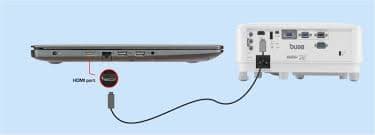
Plug one end of the HDMI cable into your laptop.
-
Connect the other end to the projector’s HDMI port.
-
Turn on the projector.
-
Select the HDMI input source on the projector.
-
Your laptop screen should automatically display on the projector.
💡 HDMI provides high-quality video and audio, making it the best option.
2. Connect Using VGA Cable (Older Projectors)
If your projector or laptop does not support HDMI, you can use a VGA cable.
Steps:
-
Connect the VGA cable to both the laptop and projector.
-
Turn on both devices.
-
Press Windows + P (on Windows) and choose display mode.
⚠️ VGA only supports video, so you may need a separate audio cable.
3. Adjust Display Settings (Windows)
After connecting, you can choose how the screen is displayed.
Press:
Windows + P
Options:
-
Duplicate – same screen on both devices
-
Extend – use projector as a second screen
-
Second screen only – show only on projector
4. Connect to a MacBook
If you're using an Apple MacBook, follow these steps:
Steps:
-
Connect using HDMI or an adapter (USB-C to HDMI).
-
Go to System Settings > Displays.
-
Click Detect Displays if needed.
-
Choose to mirror or extend your screen.
5. Wireless Connection (No Cables)
Modern projectors support wireless connection.
Methods:
-
Built-in screen mirroring
-
Using apps like Google Chromecast
-
Using Wi-Fi display or Bluetooth
Steps:
-
Connect both devices to the same Wi-Fi network.
-
Open screen mirroring on your laptop.
-
Select the projector.
6. Troubleshooting Tips 🔧
If it doesn’t work: